Introduction
Smartphone flashlights have become a vital utility. Whether it’s searching for items in dark corners or using them as emergency signals, these flashlights are versatile. However, many users find turning them off confusing. This guide provides easy-to-follow steps to turn off the flashlight on both iPhone and Android devices, ensuring you’re never left in the dark about this feature.

How to Turn Off the Flashlight on an iPhone
Using an iPhone offers versatility, with different methods available to manage your flashlight efficiently. Let’s explore these options:
- Using the Control Center:
- For iPhone X and later models, swipe down from the top-right corner to reveal the Control Center. On earlier models, swipe up from the bottom.
-
Locate and tap the flashlight icon to switch it off.
-
Leveraging Siri Commands:
- Activate Siri by holding the Home button or saying ‘Hey Siri.
-
Command ‘Turn off the flashlight’ to make Siri do the work for you.
-
Troubleshooting Common iOS Flashlight Issues:
- If the flashlight refuses to turn off, toggle the icon within the Control Center a couple of times.
- Restart your phone to resolve temporary glitches.
- Ensure your iOS is updated, as updates often include bug fixes related to device functionality.
With iPhone users covered, let’s move on to Android solutions.
Turning Off the Flashlight on an Android Device
Android devices cater to various models and software versions, each with its unique traits. Yet, turning off the flashlight follows a simple vein:
- Accessing Quick Settings:
- Swipe down from the top to open the Quick Settings menu.
-
Tap the flashlight icon to switch off the light.
-
Using Google Assistant:
- Engage Google Assistant through ‘Hey Google’ or by pressing the Home button.
-
Say ‘Turn off the flashlight,’ and Assistant will comply.
-
Troubleshooting Common Android Flashlight Issues:
- Ensure all relevant apps are up-to-date; outdated software can sometimes interfere with functionality.
- Restart your device if the flashlight remains unresponsive.
- If persistent, consider a soft reset if your phone’s design permits.
These solutions ensure a hassle-free flashlight experience on any Android phone. Next, let’s dig deeper into advanced troubleshooting strategies.
Advanced Tips and Troubleshooting
For those instances where basic steps fall short, it’s useful to know advanced methods to address flashlight issues. Here’s how:
- What to Do If the Flashlight Won’t Turn Off:
- Force stop any open camera or flashlight apps that might be conflicting.
-
If unsuccessful, reboot to clear underlying system errors.
-
Resetting Flashlight Settings:
-
For recurring issues, reset all settings to factory defaults. This will not erase personal data but will reset all system preferences.
-
Device-Specific Fixes and Tips:
- Consult the user manual for targeted advice pertaining to your model.
- Explore forums or support sites hosted by the manufacturer for device-specific help.
These advanced techniques address even the most stubborn flashlight problems. But beyond troubleshooting, how else can this feature be maximized?
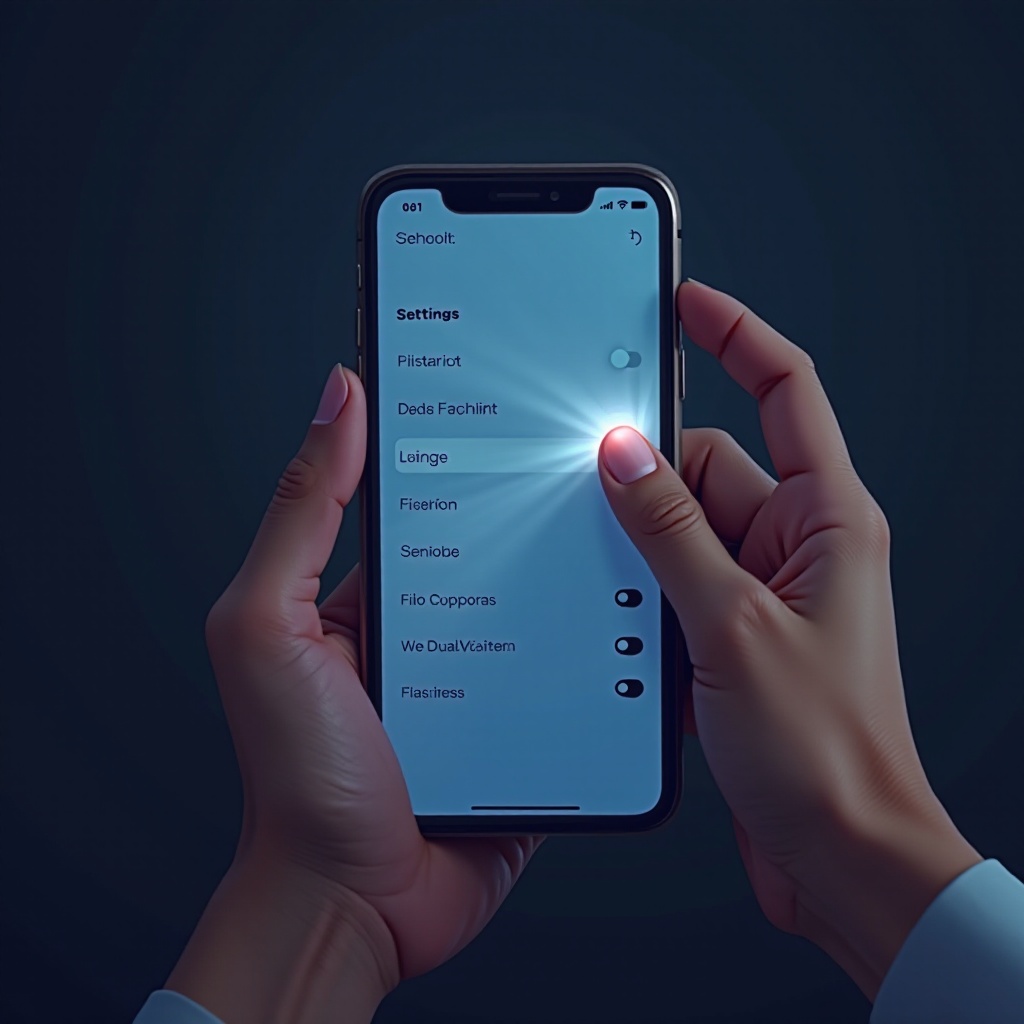
Additional Uses and Battery Saving Tips
Understanding your flashlight’s versatility and managing battery impact is vital. Here’s how you can optimize its use:
- Creative Uses for Your Phone’s Flashlight:
- The flashlight can double as a temporary lamp that works well for reading in dim light.
-
In emergencies, use it as a signal by quickly turning it on and off.
-
Techniques for Maximizing Battery Life:
- Set your screen brightness to a lower level when using the flashlight to conserve power.
- Shut down any non-essential background apps or adjust power-saving settings to extend battery life.
Knowledge of these insights complements your overall device experience. Finally, let’s address other common problems users face.
Common Flashlight Problems and Solutions
Despite its simplicity, flashlight functionality can pose challenges. Here’s an overview of regular issues and fixes:
- Solving Persistent Flashlight Problems:
- Remove any recent applications that could be impacting performance.
-
Ensure your device isn’t overheating, a factor that often disables the functionality as a protective measure.
-
Regular Maintenance Tips for Your Phone’s Torch:
- Keep your software current with updates to mitigate bug-related faults.
- Protect against moisture and dust by using appropriate covers when necessary, safeguarding internal components.
Armed with maintenance tips, you can extend your flashlight’s utility. Let’s sum up the key points explored.
Conclusion
Effectively managing your phone’s flashlight ensures it’s always ready when needed. Whether controlling it via iPhone’s Control Center or with Android’s Quick Settings and Google Assistant, the flashlight remains simple to use when you apply this guide. Embrace these optimized methods and ensure your pocket torch remains fully functional.
Frequently Asked Questions
Why won’t my phone’s flashlight turn off?
Occasionally, background apps or system glitches can impede the flashlight function. Try closing background applications and restarting your device.
Can I use my flashlight without unlocking my phone?
Yes, both iPhones and Androids offer quick access to the flashlight from the lock screen or through voice assistants like Siri or Google Assistant.
Will using the flashlight drain my battery significantly?
Using the flashlight does consume battery power, but the impact is minimal if used briefly. For prolonged use, be conscious of battery consumption.