Introduction
Having TalkBack activated on your phone unintentionally can be bothersome, especially if you’re not using it. However, with its prevalence as an accessibility tool, it’s crucial to understand its purpose before disabling it. In this guide, we walk you through easy steps to turn off TalkBack on both Android and iPhone devices, ensuring you regain smooth control over your phone.
Understanding TalkBack
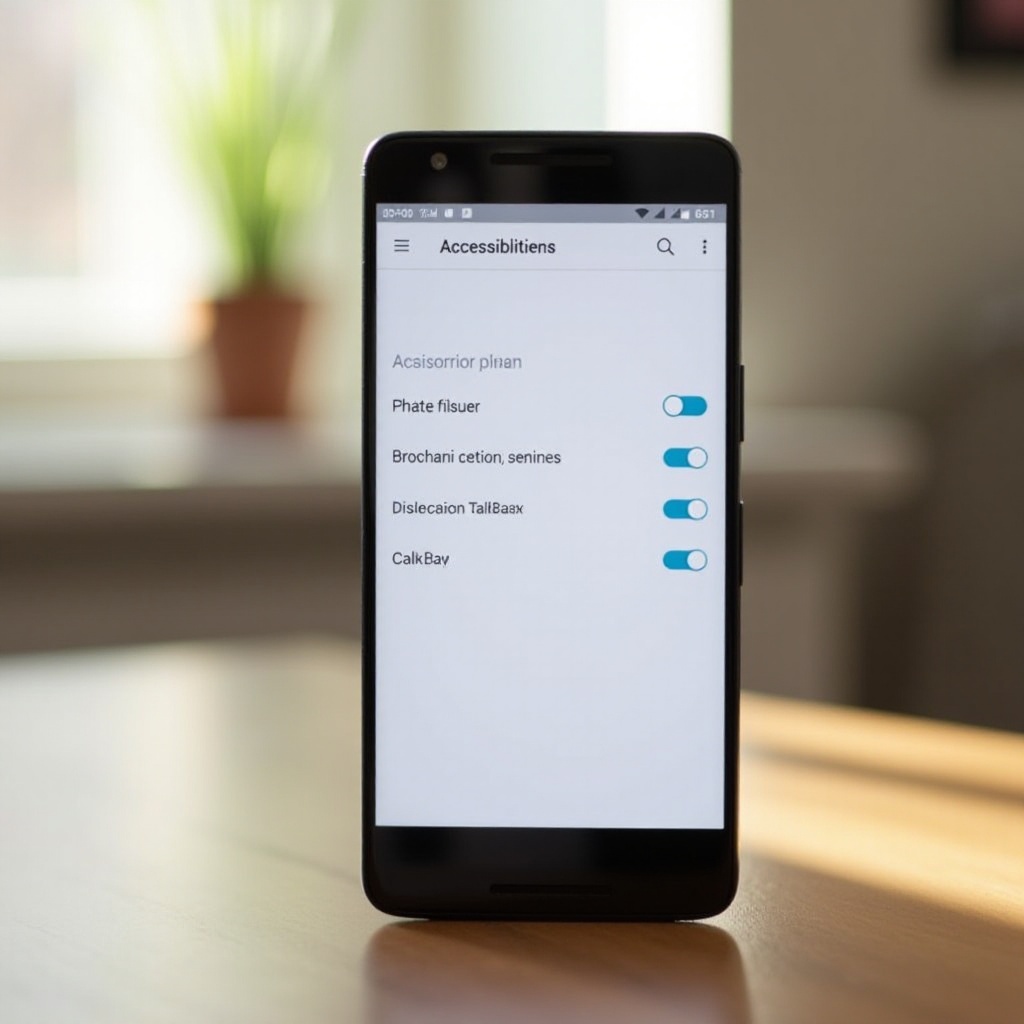
TalkBack is an essential accessibility service that aids visually impaired users by providing spoken feedback to assist them in navigating their devices without needing to view the screen.
– What is TalkBack? It acts as a screen reader, giving audible descriptions of content and actions for better accessibility.
– Benefits of TalkBack for Users: Essential for visually impaired individuals, it enables them to interact effectively with their devices through audio cues.
Even though TalkBack has significant advantages, it becomes a hassle when activated unintentionally. Let’s explore how to disable it on various devices.
How to Disable TalkBack on Android Devices
For Android users, TalkBack may be accidentally turned on, causing a confusing user experience. Follow these steps to deactivate it seamlessly:
1. Using the Settings Menu:
– Open the ‘Settings’ application.
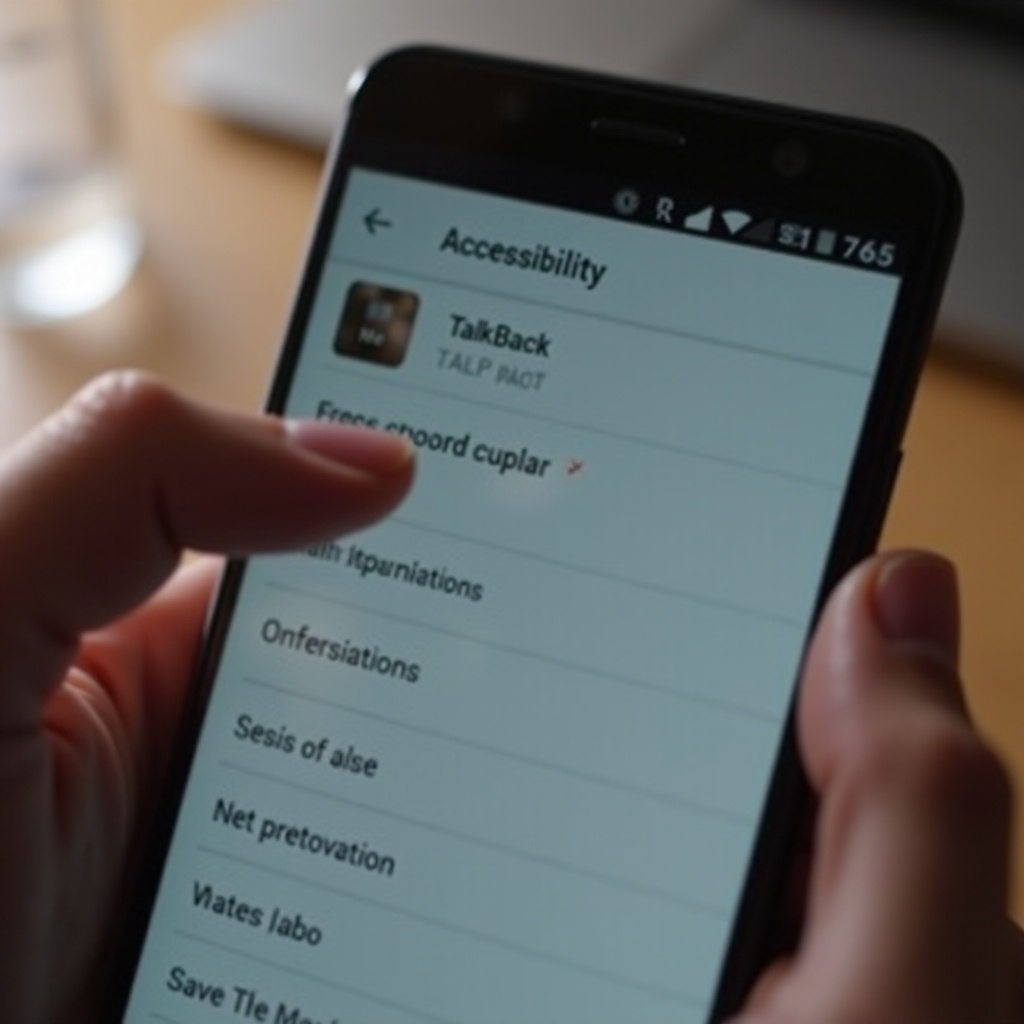
– Navigate to ‘Accessibility.
– Locate ‘TalkBack’ in the list and tap it.
– Switch it off to disable the feature.
- Utilizing Google Assistant:
- Activate Google Assistant by saying ‘Hey Google.
-
Instruct, ‘Turn TalkBack off.
-
Troubleshooting Common Issues:
- If issues persist, attempt a device restart.
- Check for any pending software updates.
Once you have deactivated TalkBack on Android, it’s time to understand how iPhone users can manage this feature.
How to Turn Off TalkBack on iPhones
For iPhones, the equivalent of TalkBack is called VoiceOver. To deactivate this feature, follow these directions:
1. Using Siri to Disable VoiceOver:
– Activate Siri by pressing the side button.
– Say ‘Turn VoiceOver off.
- Manual Steps Through Settings:
- Open your ‘Settings’ app.
- Go to ‘Accessibility.
-
Tap on ‘VoiceOver’ and toggle it off.
-
Alternative Methods:
- Use the Control Center and access the accessibility shortcut.
These straightforward steps should help iPhone users disable VoiceOver quickly. Now, let’s look at preventing accidental activation of TalkBack or VoiceOver.
Avoiding Accidental Activation of TalkBack
Understanding device gestures can minimize the risk of mistakenly turning on TalkBack or VoiceOver. Here’s how to prevent such errors:
– Understanding Gesture Controls: Become familiar with your phone’s unique gestures to avoid accidental activation of TalkBack or VoiceOver during handling.
– Setting Up Accessibility Shortcuts: Customize specific gestures or shortcuts for accessibility, ensuring you can turn off features like TalkBack rapidly if accidentally activated.
By integrating these tips into your daily phone usage, you can enjoy seamless device interaction while preventing inadvertent activation of accessibility services.
Conclusion
Successfully managing and customizing accessibility features enhances your smartphone experience significantly. By following the steps in this guide, you can efficiently disable TalkBack on Android or VoiceOver on iPhone, keeping your device experience under control. Tailor your shortcuts for peace of mind and full device capability.
Frequently Asked Questions
What should I do if TalkBack won’t turn off?
If TalkBack remains active, try restarting your phone or checking for updates. You can also seek assistance from your device’s support service.
Can I customize the TalkBack settings on my phone?
Yes, you can manage TalkBack functionalities within your accessibility settings to better suit your usage preferences.
Is TalkBack the same as VoiceOver on iPhones?
TalkBack is similar to VoiceOver in function. Both provide audio feedback for visually impaired users; however, TalkBack is for Android, and VoiceOver is for iPhones.