Introduction
Experiencing a situation where your computer fails to recognize a monitor can be frustrating and disrupt your activities, whether it’s for work or leisure. This problem demands prompt resolution to ensure productivity and enjoyment are not compromised. Understanding the potential reasons behind this common issue is the first step toward finding a solution effectively. In this comprehensive guide, we cover everything from apparent physical disconnections to more complex software and hardware diagnostics, empowering you with the tools to get your monitor back up and running quickly.
Common Causes of Display Detection Issues
Before diving into possible solutions, identifying the usual suspects behind a PC not recognizing a monitor is crucial. These causes might often be overlooked yet play a critical role in display detection problems.
Hardware Connectivity Problems
Loose, damaged, or incompatible cables are frequent causes of display recognition issues. Ensuring secure and faultless connections between your PC and the monitor is fundamental for uninterrupted signal transmission.
Outdated or Faulty Drivers
Drivers are vital in facilitating communication between hardware components. When these drivers are outdated or corrupted, your computer’s OS may fail to recognize the monitor appropriately.
Incorrect Display Settings
Misconfigured display settings, either within the OS or directly on the monitor, could lead to detection failures. It’s necessary to maintain correct configuration for optimal display performance.
Understanding these potential issues lays the groundwork for conducting effective initial checks in troubleshooting.
Initial Checks to Perform
The path to resolution often starts with basic checks, which can address and fix your monitor’s unrecognition problems effectively.
Verifying Cable Connections
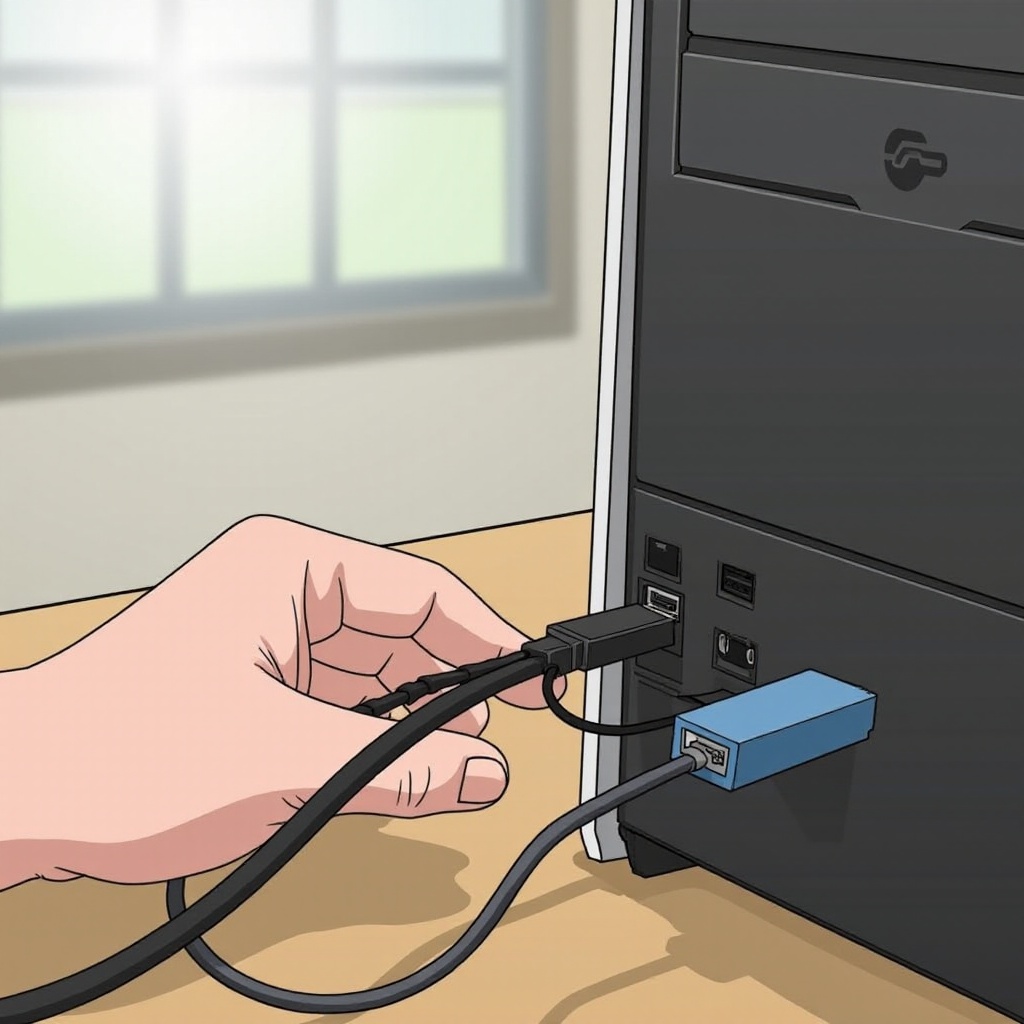
Ensure all cables are securely connected between the monitor and PC. Look over the cables for visible signs of wear or damage, replacing them if necessary.
Checking Power Supply and Monitor Indicators
Verify the monitor is powered adequately by checking the power indicator light. Ensure that the monitor’s power cable and connectors are securely attached.
Testing with Different Ports and Cables
Try alternative ports on both the monitor and the PC to rule out port-specific failures. Use different cables to ensure the issue is not due to a faulty cable.
Completing these checks can often solve simple connectivity problems that cause display detection issues.
Software Solutions for Display Recognition
Should initial checks not resolve the issue, software solutions often provide the answer, improving your PC’s ability to recognize the monitor.
Updating Display Drivers
Open Device Manager and find your display adapters. Right-click on your adapter to select ‘Update driver’ and follow the instructions to complete the update process.
Adjusting Display Settings in Windows
Right-click on your desktop and select ‘Display settings’ to access the configuration options. Ensure the correct monitor is chosen and configured, setting the display mode appropriately (e.g., Extend or Duplicate).
Performing Windows Display Troubleshooter
Navigate to ‘Settings’ > ‘Update & Security’ > ‘Troubleshoot.’ From there, select ‘Additional troubleshooters,’ followed by ‘Display troubleshooters.’ Follow the steps to resolve any detected issues.
Software solutions can often rectify underlying problems, but persistent issues might require more thorough diagnostics.
Advanced Diagnostic Methods
When basic troubleshooting does not resolve your monitor’s detection issue, exploring deeper hardware diagnostics is advisable.
Inspecting Graphics Card and Slots
Access your PC’s internals to verify the graphics card is seated correctly in its slot. Clean the card and slot of any dust or obstructions. If possible, test the card in another system to confirm functionality.
Resolving BIOS/UEFI Conflicts
Restart the computer and enter the BIOS/UEFI settings. Ensure your primary display output configuration is set correctly. Save any changes, exit the setup, and test the monitor once more.
Exploring Compatibility Issues
Confirm that your monitor is compatible with both your PC’s hardware and software, checking for any conflicts with third-party software or drivers that may cause disruptions.
These advanced steps help unveil more intricate issues, bringing you closer to a resolution.
Tips for Maintaining Display Connectivity
Proactively maintaining your setup prevents future connectivity troubles, ensuring a lasting solution.
Regular Hardware Maintenance
Clean your hardware components regularly to prevent dust buildup, checking cables frequently for wear and tear for replacements if necessary.
Keeping Graphics Drivers Updated
Stay current by checking for driver updates via the GPU manufacturer’s website or associated software, ensuring automatic updates are enabled for sustained performance.
Advising on Dual-Monitor Configurations
Use monitors compatible with your graphics card, aligning display settings accurately to avoid recognition conflicts.
By adhering to these tips, you can minimize disruptions and maintain a seamless display experience.
Conclusion
Addressing a PC not recognizing a monitor might seem daunting initially, but with a constructed plan and understanding of possible causes, you can resolve it with confidence. From performing initial and advanced checks to ensuring consistent maintenance, the right efforts ensure stable display detection and lead to a reliable computing experience. By being proactive and methodical, you safeguard against future issues, ensuring uninterrupted use of your computer and monitor.
Frequently Asked Questions
Why does my monitor say ‘No Signal’ even when it’s connected?
A ‘No Signal’ message usually indicates a faulty connection. Ensure all cables are connected securely and the monitor is powered on.
How do I check if my graphics card is faulty?
Test the graphics card in another computer, check device performance via software, or inspect for physical damage or dust interference.
Can a faulty HDMI/DisplayPort cable cause detection issues?
Yes, damaged or unreliable cables often lead to communication failures between the PC and monitor, resulting in detection issues.